
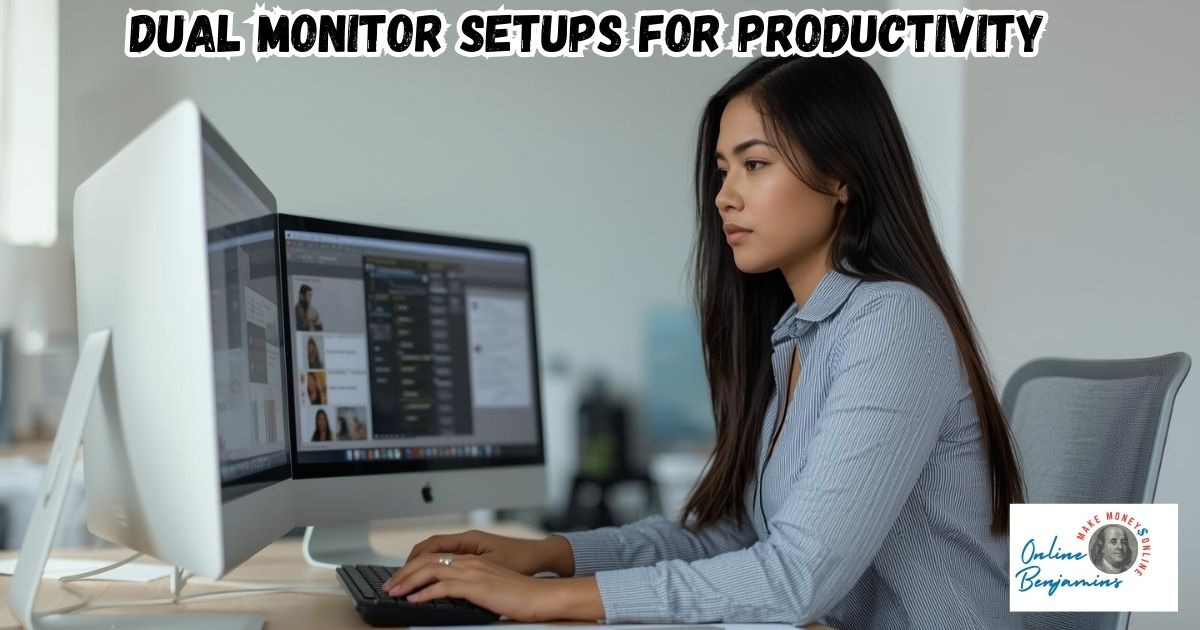
Dual monitor setups are a popular way to improve productivity and streamline editing tasks. I’ve found that using two screens isn’t just about having extra space; it helps me juggle emails, manage editing timelines, and multitask with far less hassle. For anyone wanting to boost workflow, choosing the right monitors and configuration can make a really big difference.
QUICK LOOK: – Features to Look for when Pairing Monitors
- Resolution Consistency: Matching screen resolutions (for example, two 4K monitors) stops my windows from jumping in size when I move them between monitors. Mixing resolutions often causes scaling problems and can get frustrating fast.
- Panel Type: IPS panels offer better viewing angles and color uniformity, important for creative work or when the screens are offset at an angle.
- Connectivity: I prefer monitors with USB-C and power delivery to charge my laptop, as well as DisplayPort for daisy-chaining two screens from one port. This helps cut down on tangled cords.
- Mounting Options: Using a sturdy monitor arm (or a stand with lots of adjustments) lets me match up the screens neatly and clears up desk space. Most monitors today offer VESA mounting support.
- Color Calibration: Creative work calls for accurate color. Some monitors come factory-calibrated, but I like to recalibrate every few months using a colorimeter. For general productivity, perfect color accuracy isn’t as critical.
Choosing the Right Monitors for Productivity and Editing
When I started looking for the best monitors for dual setups, I quickly realized just how much variety is out there. Some screens excel at everyday office work, while others are built for creative tasks like color grading or video editing. The key is to pick monitors that match both your workspace and the way you work.
Modern productivity monitors usually offer 4K resolution, sharp IPS panels, and helpful features like USB-C connections so I can plug in my laptop with just one cable. For editing, especially when color accuracy matters—think photo retouching, video production, or design—monitors with high color gamuts, calibration support, and quality panels are the way to go.
Top Dual Monitor Recommendations
I’ve tested and checked out some of the most recommended screens for both productivity and creative work. Here are my favorite picks, based on what’s worked for me and what gets consistently high marks in user reviews:
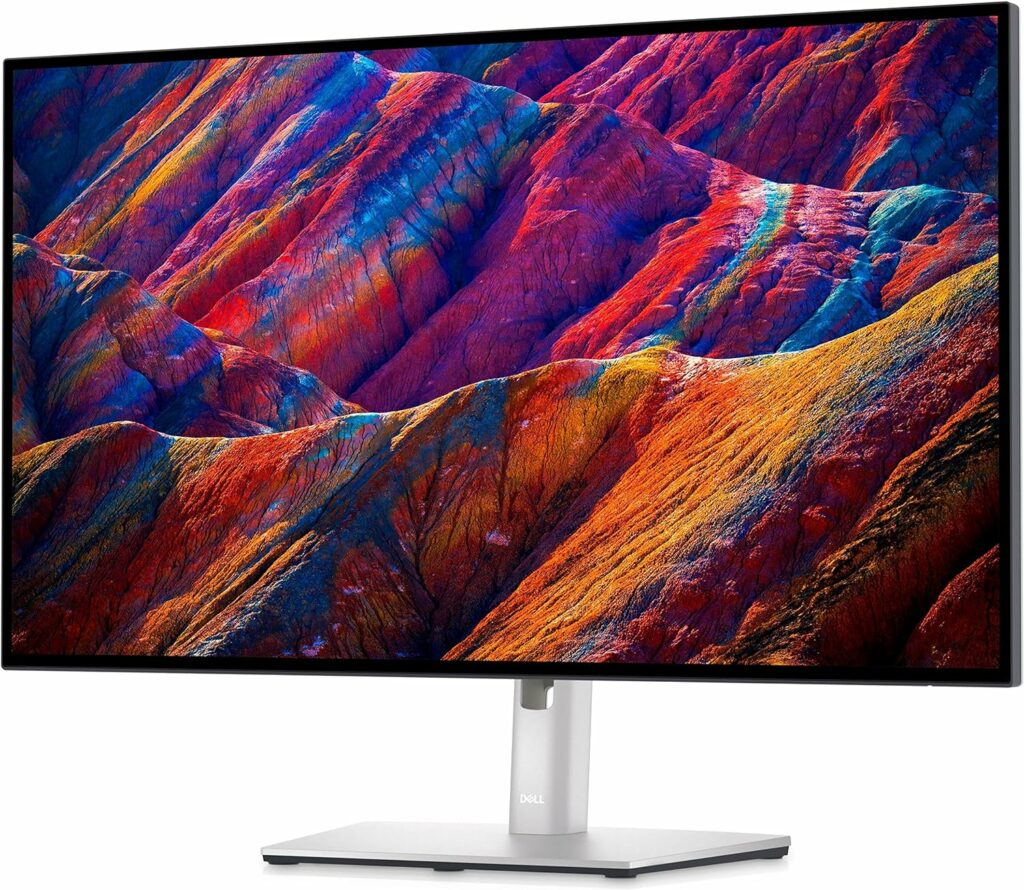
Dell UltraSharp U2723QE (27-inch 4K):
This monitor packs a crisp 4K IPS panel that’s great for text, spreadsheets, or browsing. It also acts as a USB-C hub, making cable management simpler. The 32-inch version, Dell U3225QE, gives you more screen real estate if you prefer something bigger.
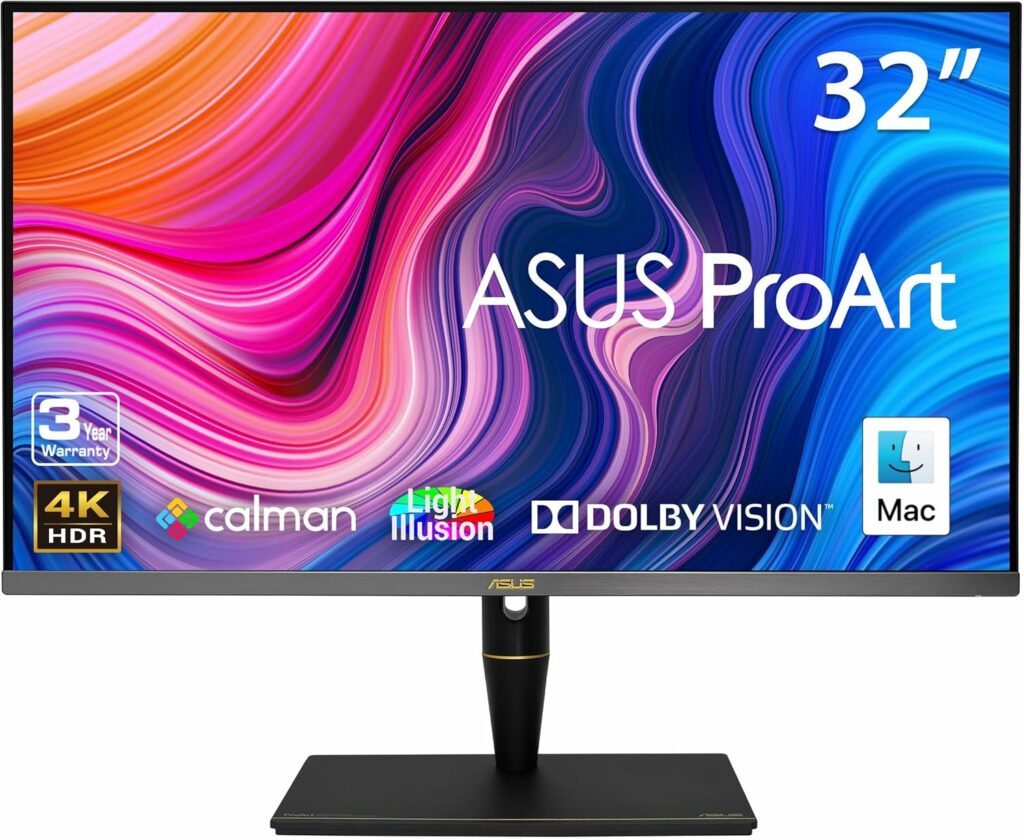
ASUS ProArt PA32UCX (32-inch 4K)
Built for creatives, this screen features high color accuracy and covers wide color gamuts. The ProArt series comes factory-calibrated, so I can trust it out of the box for color-critical work.

LG UltraGear (32-inch Dual Mode)
This monitor stands out because it’s taller than it is wide, essentially acting like two 21-inch monitors stacked vertically. It’s perfect for limited desk space and vertical workflows, like coding or editing long documents.

Dell P2425H (24-inch)
For a compact, affordable secondary monitor that still looks sharp, this 24-inch Full HD panel has been a go-to pick for me.
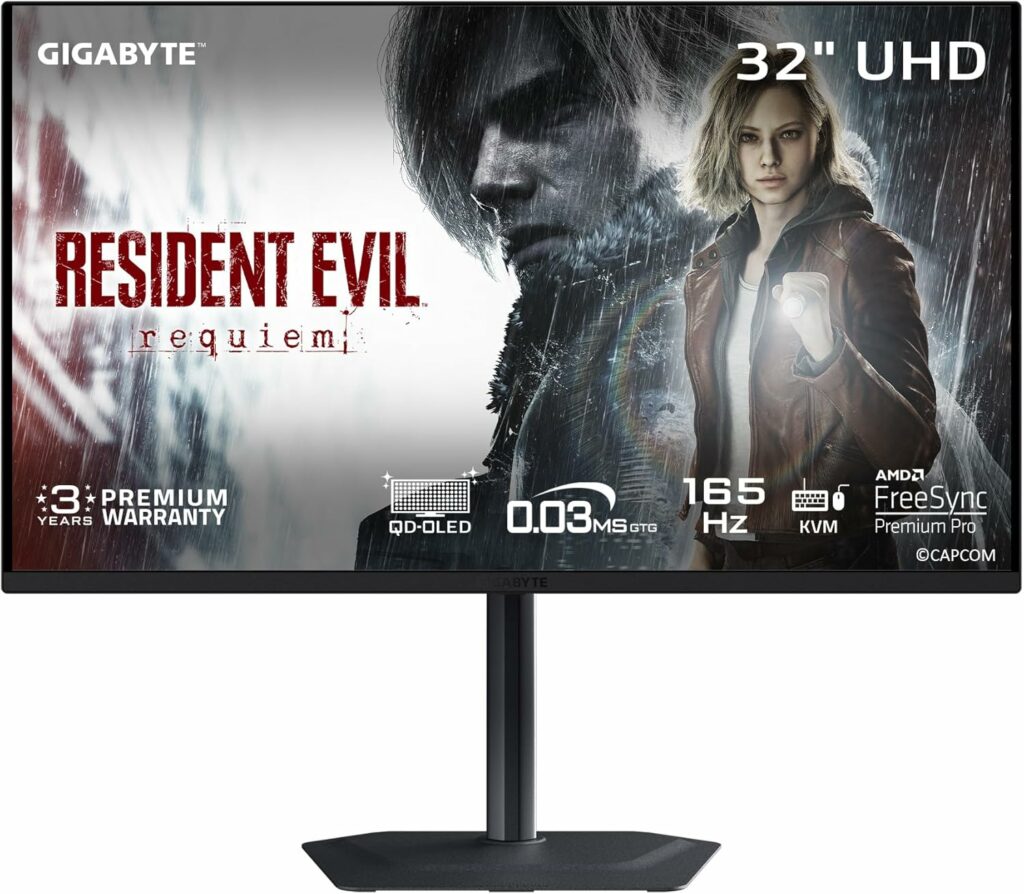
Gigabyte M32U (32-inch 4K 144Hz)
Geared toward those who want fast refresh rates and high resolution. It works well for both gaming after work and detailed editing during work hours.
Optimal Dual Monitor Configurations
The way I arrange my monitors affects comfort and workflow more than I expected. There isn’t a one-size-fits-all layout, so I’ve tried a few styles to see what suits different tasks best:
- Side by Side (Landscape): Placing monitors next to each other is the most popular setup. It’s perfect for comparing documents, dragging windows across screens, and tracking progress in big spreadsheets. This arrangement keeps my neck and eyes relaxed during long sessions.
- Vertical or Portrait Mode: Flipping a monitor vertically is really helpful for coding, reading, or reviewing long web pages and documents. A portrait display makes it easier to see more lines of code or text at once.
- Stacked (One on Top of the Other): When desk space is tight, or I need to see a full editing timeline below my main canvas (in video or audio editing), I use a stacked layout. Monitors like the LG DualUp were made for this kind of style.
I switch up my setup depending on my tasks. If I’m reviewing a video, I’ll keep the timeline on the lower monitor and use the upper screen for reference material or extra tools.
What to Look for When Pairing Monitors
Buying two screens means I need to keep a few things in mind to avoid headaches. Here’s a checklist based on my experience and advice from others in the productivity and editing space:
- Resolution Consistency: Matching screen resolutions (for example, two 4K monitors) stops my windows from jumping in size when I move them between monitors. Mixing resolutions often causes scaling problems and can get frustrating fast.
- Panel Type: IPS panels offer better viewing angles and color uniformity, important for creative work or when the screens are offset at an angle.
- Connectivity: I prefer monitors with USB-C and power delivery to charge my laptop, as well as DisplayPort for daisy-chaining two screens from one port. This helps cut down on tangled cords.
- Mounting Options: Using a sturdy monitor arm (or a stand with lots of adjustments) lets me match up the screens neatly and clears up desk space. Most monitors today offer VESA mounting support.
- Color Calibration: Creative work calls for accurate color. Some monitors come factory-calibrated, but I like to recalibrate every few months using a colorimeter. For general productivity, perfect color accuracy isn’t as critical.
Frequently Asked Questions about Dual Monitor Setups
What’s the best way to start with a dual monitor setup for productivity?
My advice is to pick two displays with matching resolution and adjust their heights so the top edges line up. Start with side by side, then try vertical or stacked layouts to see which feels best for your workflow
Should I buy two identical monitors?
Not always. Picking two of the same size and resolution makes alignment easier, but mixing a large screen with a smaller secondary monitor helps manage space. Keep resolutions and display settings consistent regardless.
Are monitor arms worth it?
In my experience, yes. They free up desk space, let you adjust the screens easily, support better posture, and make everything look neater. They also add flexibility if you swap out monitors down the road.
Ergonomic Setup Tips for Long Sessions
Spending hours in front of dual monitors can strain my neck and eyes if the setup isn’t right. To stay comfortable, I always check these basics:
- Ensure the top of each monitor is at or just below eye level to encourage a natural posture, especially if I glance up and down between stacked screens.
- Keep about an arm’s length between my chair and the monitors; getting too close amps up eye fatigue.
- Monitor arms let me tweak tilt, height, and rotation on the fly, giving relief from fixed stands.
Professional Dual Monitor Setups: Real-World Case Examples
Many creative and office professionals put dual setups to use for good reason. For instance, video editors often run a 32-inch 4K main screen for the preview window and arrange a 27-inch secondary monitor vertically for managing effects, audio tracks, or referencing scripts. Graphic designers might prefer matching 27-inch or 32-inch screens to keep color and detail even across their workspace.
The ASUS ProArt PA279CRV is a favorite among creatives. It’s a 27-inch 4K IPS screen that covers 99% of the DCI-P3 color gamut, is factory-calibrated, and includes a full-featured USB-C hub. Many reviewers highlight its easy calibration and vivid output, but say its built-in speakers are a letdown. I’ve noticed the same on many monitors, so I reach for external speakers when I can.
If you’re a gamer who also edits, the Alienware 27 4K QD-OLED monitor is a solid pick. Its perfect blacks and accurate colors are great for HDR video edits. The built-in USB hub and high refresh rate also make for a smoother workflow and better after-hours gaming.
I’ve also heard positive reviews about the Samsung ViewFinity S8 (S80UD) monitors, which are sold as paired sets and offer full adjustment for tilt, pivot, and height. That’s really helpful when crafting a mixed landscape-portrait setup.
Popular Dual Monitor Mounts and Workspace Solutions
Once you’ve picked your monitors, a solid mount makes for a neater, more comfortable desk. I’ve tried these and found both reliable and user-friendly:
- Huanuo Double Monitor Mount: Fits most 13 to 32-inch monitors, offers tilt and rotation, and mounts via a clamp or grommet. The arm movement is fluid thanks to gas springs, so quick repositioning is easy.
- Ergotron WorkFit Desk Mount: Sitting at the premium end, this mount supports standing desk setups. Both screens (and even your keyboard) can move together, letting me switch from sitting to standing in no time.
Advanced Tips for a High-Performance Dual Monitor Setup
After I had the basics figured out, adding a few extra touches made my desk even better:
- Use Consistent Scaling: I make sure my operating system’s scaling is the same on both screens to prevent weird window sizing.
- Keep Monitor Color Synced: I use monitor software or a colorimeter to regularly match brightness and white point on both screens, so my workspace feels unified, especially when editing photos or video.
- Cable Management: Velcro straps, cable trays, and organizing clamps go a long way in keeping cords tucked out of sight. Not only does this make everything look tidier, but it also clears space for documents, drawing tablets, or even my coffee mug.
- Task-Specific Layouts: For editing video, I’ll put the timeline on one monitor and preview/output on the other. When coding, I keep my code in portrait mode and use the other screen for docs or communications apps.
Jumping into a dual monitor setup can really shake up how you work, whether you’re managing documents, coding, or editing high-resolution video. The right combination of monitors, thoughtful configuration, and ergonomic support brings a noticeable boost to workflow and comfort.
Check Out Our Most Recent Articles:
- Scaling Content Production Without Increasing Costs

- Balancing Content Quality And Posting Frequency
- Is The Dreaded Google “Shadow Ban” Real?

- Low Website Traffic Affecting My Google AdSense Earnings

- Best Strategies To Overcome Content Creator Burnout

- Is Amazon FBA Dead?

Wishing You Much Success in Setting Up Your Dual Monitors,

- onlinebenjamins.com
- thebeachangler.com
- thesinnerinthemirror.com
- diyoutdoorsmen.com
- Facebook: Online Benjamins
- Twitter: @onlinebenjamin1
- Instagram: dotcomdinero
- YouTube: Online Benjamins
Rex
P.S. If you have any questions or are unsure of anything, I am here, and I promise I will get back to you on all of your questions and comments. Just leave them below in the comment section. Follow me on Twitter: @onlinebenjamin1, Instagram: dotcomdinero, and Facebook: Online Benjamins.


Hi,
Thanks for stopping by and congratulations for taking the first steps to building your own online business. I’ve been in business both offline and online since 1997. I would consider it an honor to help you build your business. Father of 3, life long outdoorsman with an education in Genetics and Economics. This site is about cutting through the BS and finding the real opportunities in the online world. I look forward to working with you.